How to Set Margins and Paper Size In Microsoft Word
After
writing and using Microsoft Word to print results using the printer, of
course you also need to set the paper size to be used to print
documents. This needs to be done to ensure that the appropriate paper size when printed later. Suppose that when you want to use paper with size A4 or Folio, then first you have to set the margins and paper size. If not, then the document will look when printed becomes irregular.
And for those of you who are currently set margins and paper size
before printing the document, but do not know how, do not need khawatr,
the following bisikan.com team will help and guide you how to set
margins and change the paper size.Here he steps1. First, make sure the document you want to print is active or has been open. How to open this document can do with opening the first Microsoft
Word, Microsoft kemuidan click the icon and choose Open, and then locate
the drive where the document is stored, having obtained click on the
document and click the Open button.2. If the document is already open, make sure that you select the tab on the menu bar is the Page Layout tab.3. Then click on the column Page Setup, please click on the Margins.4. That would appear margin choice, please select the one you want to use margin.5. Or if you want to set the margins to the size you want, then you can use a custom Margin. Please input your desired size.6. Meanwhile, to set the paper size, click the Paper tab, in the Paper Size column, adjust the size of what you want.7. When you're done, do not forget to click the OK button. With so now the size of the margin has changed.
Kamis, 24 Maret 2016
MATERIALS OR COMPUTER PERIPHERAL EQUIPMENT FOR CLEANING
MATERIALS OR COMPUTER PERIPHERAL EQUIPMENT FOR CLEANING
a) Vacuum Cleaner Mini
Mini vacuum cleaner is almost the same with a brush used to remove dust. But the vacuum cleaner easier and cleaner. At the end of the mini vacuum cleaner equipped with a brush sizes vary widely intended to adjust the narrowness of the corners on the component. This tool is ideal to use for cleaning the circuit on the mainboard and in the corners casingkomputer.
b) Fabrics Dry, Tissue and Fluid Cleansing
Dry cloth or paper towels used to clean liquid which may result softdrink, ink or rain water that is fresh or not dry. Liquid manure is very dangerous if not promptly cleaned up because of this kind of dirt can deliver currents that could lead to a short circuit or fatal damage to the PC component. While the cleaning fluid used to clean stains or dirt that has dried up like a splash of ink printer.
c) Brush
Brush is the equipment used to clean dust or insect nests. In addition the brush was also used to clean dust that closes at fentilasi casing. Brush can also use to clean the heatsink fins on the motherboard and processor.
d) Disk Cleaner
Disk cleaner is used to clean the head of the diskdrive of the influence of dust or dirt on the floppy drive head. Disk cleaner is composed of cleaning fluid and floopydisk that piringannya replaced with tissue paper.
e) CD Cleaner
CD cleaner same principle works with disk cleaner is to rub the dusty or dirty with cleaning fluid by utilizing lap. Different cd disk cleaner cleaner with only lies in the shape that is on a CD cleaner using a small brush or fins mounted on the disk.
f) Screwdriver
Screwdriver is essential equipment for computer technicians, because with this tool technician is able to open and release the components in the PC.
g) Tang
Kinds of pliers for the purposes of technicians to perform maintenance of PC components is pliers combination pliers and shark. Tang shark is widely used to hold the head of a small screw or jumper. As for the combination pliers used to cut wires and other purposes.
TAKING CARE PERIPHERAL
To carry out the cleaning of components on peripherals must go through certain means or procedures. Procedures that must be taken adapted to the types of peripherals and dirt that is on the peripherals.
The following cleanup steps peripheral components:
a) Keyboard
The procedure to clean the keyboard from liquid manure:
• Use a dry cloth or tissue to clean the liquid manure.
• Clean the keyboard keys slowly
Cleaning Procedure keyboard from dust and dirt:
Use a small brush or a vacuum cleaner with a brush tip is small and cramped.
So that dust or dirt can be easily sucked.
b) Mouse
The procedure to clean the mouse from dust:
• Use a cloth and cleanser dirt or dust on the mouse ball and shaft.
• Clean the ball slowly and slowly the mouse wheel
c) Monitor
Monitor cleaning procedure:
• use a small brush or a vacuum cleaner with the tip of a small brush to clean the dust.
• To clean the monitor from liquid manure that sticks to the screen, use a cleanser and then wipe with a dry cloth. Especially at the corner of the screen.
d) Printer
Printer maintenance procedures:
• Use a damp cloth to clean the printer. Do not use flammable liquids such as alcohol, gasoline or paint thinner. When flammable liquids associated with electrical components inside the printer, it can result in fire or short circuit. Always unplug the printer from the outlet when the printer is cleaned.
• Do not put the printer in a place that is unstable or prone to vibration or
shock. The printer may fall and be damaged.
• Do not put the printer in a humid or dusty, exposed to direct
sun or near a heat source or flame.
III. Checking the results of treatment of peripheral
Tool used weeks to check the peripherals:
a) Device Manager
Device Manager is used to determine the overall situation. properties, kemudianUntuk display: right click on my computer device manager. From the Device Manager tab dapatpilih hardware known to all the hardware installed on the PC. This tool can be used to disable / enable hardware installed and to uninstall drivers and driver updates. Device manager can also provide information on whether the drivers for the peripherals are installed properly or not. If peripherals are not installed properly, then there will be the symbol "!" On these peripherals.
b) System Information
System information is used to find out information of the hardware. For Systema system toolsàacessoriesà programàmemanggil this tool click start information. We will get to see as shown below.
InformationTool System information Display System is equipped with a search function that serves to facilitate the search for the components inside the computer. In addition this tool is also equipped with facilities capable of being used to diagnose network, hardware and file system.
c) Direct X
DirectX is the default Windows tool used to diagnose all hardware associated with graphics, network and multimedia. DirectX Tool can also be called from the tool system information.
Display DirectX tool consists of three parts: Device, driver, feature and note. With DirextX tool can know whether there is any trouble in the attached peripherals. This tool is very easy to use to test the ability of the monitor resolution, 3D support capabilities.
See in the picture above shows that the problem can not be found
on the periphery of the display.
d) Printer Tool
Tool used for printer maintenance can use the software from the vendor. In this report using the printer with the brand Cannon S200Spx. Here are the tools used to diagnose printer.
• Cleaning and deep cleaning is used to clean the head of the ink which inhibits needle printer head.
• Nozzle check is used to check the pattern of the printer head, this method is used if the pattern of the printer has a problem.
• Print Head alinggment used to fix the position of the printer head when the irregularities.
• Ink Counter Reset, used to reset the ink indicator so that the full-back. This tool is used when it is done charging ink.
• Low Ink Warning Setting used to display a message or a warning if the conditions of the ink is low.
• Customs operation mode setting is used to set the printer in a long time at least wait until the ink is dry. It is intended to set the speed for each print the sheet if the ink drying time is brought forward.
a) Vacuum Cleaner Mini
Mini vacuum cleaner is almost the same with a brush used to remove dust. But the vacuum cleaner easier and cleaner. At the end of the mini vacuum cleaner equipped with a brush sizes vary widely intended to adjust the narrowness of the corners on the component. This tool is ideal to use for cleaning the circuit on the mainboard and in the corners casingkomputer.
b) Fabrics Dry, Tissue and Fluid Cleansing
Dry cloth or paper towels used to clean liquid which may result softdrink, ink or rain water that is fresh or not dry. Liquid manure is very dangerous if not promptly cleaned up because of this kind of dirt can deliver currents that could lead to a short circuit or fatal damage to the PC component. While the cleaning fluid used to clean stains or dirt that has dried up like a splash of ink printer.
c) Brush
Brush is the equipment used to clean dust or insect nests. In addition the brush was also used to clean dust that closes at fentilasi casing. Brush can also use to clean the heatsink fins on the motherboard and processor.
d) Disk Cleaner
Disk cleaner is used to clean the head of the diskdrive of the influence of dust or dirt on the floppy drive head. Disk cleaner is composed of cleaning fluid and floopydisk that piringannya replaced with tissue paper.
e) CD Cleaner
CD cleaner same principle works with disk cleaner is to rub the dusty or dirty with cleaning fluid by utilizing lap. Different cd disk cleaner cleaner with only lies in the shape that is on a CD cleaner using a small brush or fins mounted on the disk.
f) Screwdriver
Screwdriver is essential equipment for computer technicians, because with this tool technician is able to open and release the components in the PC.
g) Tang
Kinds of pliers for the purposes of technicians to perform maintenance of PC components is pliers combination pliers and shark. Tang shark is widely used to hold the head of a small screw or jumper. As for the combination pliers used to cut wires and other purposes.
TAKING CARE PERIPHERAL
To carry out the cleaning of components on peripherals must go through certain means or procedures. Procedures that must be taken adapted to the types of peripherals and dirt that is on the peripherals.
The following cleanup steps peripheral components:
a) Keyboard
The procedure to clean the keyboard from liquid manure:
• Use a dry cloth or tissue to clean the liquid manure.
• Clean the keyboard keys slowly
Cleaning Procedure keyboard from dust and dirt:
Use a small brush or a vacuum cleaner with a brush tip is small and cramped.
So that dust or dirt can be easily sucked.
b) Mouse
The procedure to clean the mouse from dust:
• Use a cloth and cleanser dirt or dust on the mouse ball and shaft.
• Clean the ball slowly and slowly the mouse wheel
c) Monitor
Monitor cleaning procedure:
• use a small brush or a vacuum cleaner with the tip of a small brush to clean the dust.
• To clean the monitor from liquid manure that sticks to the screen, use a cleanser and then wipe with a dry cloth. Especially at the corner of the screen.
d) Printer
Printer maintenance procedures:
• Use a damp cloth to clean the printer. Do not use flammable liquids such as alcohol, gasoline or paint thinner. When flammable liquids associated with electrical components inside the printer, it can result in fire or short circuit. Always unplug the printer from the outlet when the printer is cleaned.
• Do not put the printer in a place that is unstable or prone to vibration or
shock. The printer may fall and be damaged.
• Do not put the printer in a humid or dusty, exposed to direct
sun or near a heat source or flame.
III. Checking the results of treatment of peripheral
Tool used weeks to check the peripherals:
a) Device Manager
Device Manager is used to determine the overall situation. properties, kemudianUntuk display: right click on my computer device manager. From the Device Manager tab dapatpilih hardware known to all the hardware installed on the PC. This tool can be used to disable / enable hardware installed and to uninstall drivers and driver updates. Device manager can also provide information on whether the drivers for the peripherals are installed properly or not. If peripherals are not installed properly, then there will be the symbol "!" On these peripherals.
b) System Information
System information is used to find out information of the hardware. For Systema system toolsàacessoriesà programàmemanggil this tool click start information. We will get to see as shown below.
InformationTool System information Display System is equipped with a search function that serves to facilitate the search for the components inside the computer. In addition this tool is also equipped with facilities capable of being used to diagnose network, hardware and file system.
c) Direct X
DirectX is the default Windows tool used to diagnose all hardware associated with graphics, network and multimedia. DirectX Tool can also be called from the tool system information.
Display DirectX tool consists of three parts: Device, driver, feature and note. With DirextX tool can know whether there is any trouble in the attached peripherals. This tool is very easy to use to test the ability of the monitor resolution, 3D support capabilities.
See in the picture above shows that the problem can not be found
on the periphery of the display.
d) Printer Tool
Tool used for printer maintenance can use the software from the vendor. In this report using the printer with the brand Cannon S200Spx. Here are the tools used to diagnose printer.
• Cleaning and deep cleaning is used to clean the head of the ink which inhibits needle printer head.
• Nozzle check is used to check the pattern of the printer head, this method is used if the pattern of the printer has a problem.
• Print Head alinggment used to fix the position of the printer head when the irregularities.
• Ink Counter Reset, used to reset the ink indicator so that the full-back. This tool is used when it is done charging ink.
• Low Ink Warning Setting used to display a message or a warning if the conditions of the ink is low.
• Customs operation mode setting is used to set the printer in a long time at least wait until the ink is dry. It is intended to set the speed for each print the sheet if the ink drying time is brought forward.
Definition of Operating System and Type-Kind
Definition of Operating System and Type-Kind
The operating system or operating system (OS) is a set of several computer control program that has been created by the computer manufacturer with regard shape and workings of the hardware (hardware) at their disposal. This OS is used to manage all the programs that are in the computer and data storage functions to control and manage all of the work program of the hardware. In the absence of this operating system, the computer can not be used because the OS is a place for storing the application program.
Types of Computer Operating Systems
There are several types of OS that is often found on the market. Namely, among others:
Microsoft Windows Operating System
Microsoft Windows operating system is already very global and almost serluruh computer has a program of this application. The operating system of this type has a multitasking and multiuser nature. So widely used and popular among computer users.
Operating system MS-DOSSistem this operation was developed in 1981 by Bill Gates and Paul Allen. This operating system is less known and less popular, but still can be found in the Microsoft Windows operating system. MS-DOS is a single tasking. For Microsoft Windows XP, MS-DOS uses version 5.1.2600
Definition of Operating System and Type-Kind
UNIX Operating System
The UNIX operating system which was first developed by AT and T Bell Laboratories. The UNIX operating system is used to run on a computer network. At first UNIX operating system is the type of command line interface. But in fact difficult for new users. And to allow a user, UNIX also provides a Graphical User Interface version.
LINUX Operating System
LINUX operating system is a development of UNIX. In awalny, the operating system created by Linus Torvalds, is a student in Finland. LINUX made in 1991 which was then further developed by programmers in the world.
OSMacintosh Mac Operating System Operating System or Mac OS brevity is GUI based operating system that was released by Apple Computer in 1984. At that time, the technology is considered the most advanced Mac OS and advanced. Yet it can not be maintained to this day. Mac OS less competitive with Microsoft Windows.
Such is a brief review of the Operating System Definition And Type-Kind, may be useful. That is all and thank you :)
The operating system or operating system (OS) is a set of several computer control program that has been created by the computer manufacturer with regard shape and workings of the hardware (hardware) at their disposal. This OS is used to manage all the programs that are in the computer and data storage functions to control and manage all of the work program of the hardware. In the absence of this operating system, the computer can not be used because the OS is a place for storing the application program.
Types of Computer Operating Systems
There are several types of OS that is often found on the market. Namely, among others:
Microsoft Windows Operating System
Microsoft Windows operating system is already very global and almost serluruh computer has a program of this application. The operating system of this type has a multitasking and multiuser nature. So widely used and popular among computer users.
Operating system MS-DOSSistem this operation was developed in 1981 by Bill Gates and Paul Allen. This operating system is less known and less popular, but still can be found in the Microsoft Windows operating system. MS-DOS is a single tasking. For Microsoft Windows XP, MS-DOS uses version 5.1.2600
Definition of Operating System and Type-Kind
UNIX Operating System
The UNIX operating system which was first developed by AT and T Bell Laboratories. The UNIX operating system is used to run on a computer network. At first UNIX operating system is the type of command line interface. But in fact difficult for new users. And to allow a user, UNIX also provides a Graphical User Interface version.
LINUX Operating System
LINUX operating system is a development of UNIX. In awalny, the operating system created by Linus Torvalds, is a student in Finland. LINUX made in 1991 which was then further developed by programmers in the world.
OSMacintosh Mac Operating System Operating System or Mac OS brevity is GUI based operating system that was released by Apple Computer in 1984. At that time, the technology is considered the most advanced Mac OS and advanced. Yet it can not be maintained to this day. Mac OS less competitive with Microsoft Windows.
Such is a brief review of the Operating System Definition And Type-Kind, may be useful. That is all and thank you :)
Types of OSI Layer
OSI Layer 7
1. Application Layer
• DHCP (Dynamic Host Configuration Protocol)Function: This protocol is used for distribution of IP (Internet Protocol) network with a number of IP (Internet Protocol) is limited.
• DNS (Domain Name Server)
Function: This protocol is used for the administration of domain names and numbers machine IP (Internet Protocol)
• FTP (File Transfer Protocol)Function: This protocol is used to transfer files to the machine internetwork
• HTTP (Hyper Text Transfer Protocol)Function: This protocol is used to transfer documents in the form of HTML into the web
• MIME (Multipurpose Internet Mail Extension)Function: This protocol are used to send text files binarydalam
• NNTP (Network News Transfer Protocol)Function: This protocol is used to receive and send news group preformance form of articles in the network and form discussion groups
• POP (Post Office Protocol)Function: This protocol is used to receive and send mail from the sender's computer to the server
• TelnetFunction: This protocol is used to log in or sign in to other computers on the Internet andtelnet also access a wide range of public services available on the internet includinglibrary catalogs and various databases.
2. Presentation Layer
• VTP (Virtual Terminal Protocol)Function: This protocol is used to create and maintain data structure andMentranslating terminal into a standard form.
• SMTP (Simple Mail Transfer Protocol)Function: This protocol is used to exchange mail
• SNMP (Simple Network Management Protocol)Function: This protocol is used to manage or organize networks
• RPC (romote Procedure Call)Function: This protocol is used for dialing long distance
3. Transport Layer
• SPX (Sequence Package eXchange)Function: This protocol is used as a medium for the transmission of data and ensure the validity of the datatransmittedby IPX so that the data sent is not impaired or occurs corruptthe data.
• TCP (Transmission Control Protocol)Function: This protocol is used for data exchange oriented (connection oriented)And the communication of data used by an internet community forthe process of exchanging data on one computer to another computer inan Internet network
• UDP (User Datagram Protocol)Function: This protocol is used for data exchange non orientation and used by applications that are not too concerned with the reliability of service.
4. Network Layer
• IP (Internet Protocol)Function: This protocol is used to to provide the best way to bringdatagram from the source to the destination, regardless of whether the machine in questionare on the same network or not, or whether there are networksAmong other sources with the goal or not or can be called by routing
• RIP (Routing Information Protocol)Function: This protocol is used to select routing
• RARP (Reverse ARP)Function: This protocol is used to obtain information from the hardware IP numbers
• ICMP (Internet Control Message Protocol)Function: This protocol is used to engirim error messages and other conditions that regard special attention
5. Session Layer
• NETBIOS (Network Basic Input Output System)Function: This protocol is used as a standard network system
• NETBEUI, (NETBIOS Extended User Interface)Function: This protocol is used to communicate LAN pda different computers, NETBIOS use on the Ethernet, Token Ring, and Windows NT
• ADSP (AppleTalk Data Stream Protocol)Function: This protocol is used to check the flow of data and monitors the flow of data between computers, so that data can be sent.
• PAP (Printer Access Protocol)Function: This protocol is used for Postscript printer on the AppleTalk network to access and to control how the pattern of inter-node communication.
• SPDU (Session Protocol Data unit)Function: This protocol is used to support the relationship between the two session service user.
• NETBEUI (NETBIOS Extended User InterfaceFunction: This protocol is used for the same dengat NETBIOS only slightly developed further by adding a function that allows to work with a variety of hardware and software.
6. Datalink Layer
• BSC (Binary Synchronous Control / character-oriented protocol)Function: This protocol used mainly for addressing and sending data packets oriented character.
• HDLC (High Level Data Link Control / Protocol oriented bits)Function: This protocol is used to collect (ask) response from peer HDLC frame
• PPP (Point to Point Protocol)Function: This protocol is used for synchronous and asynchronous communication ancan negotiate additional functions Error Detection, through the magic variablenumber.
7. Physical layer• NIC (Network Interface Card)Function: This protocol is used to connect computers to the cableused in local area network (LAN) and allow the computer tocommunicate in a network
1. Application Layer
• DHCP (Dynamic Host Configuration Protocol)Function: This protocol is used for distribution of IP (Internet Protocol) network with a number of IP (Internet Protocol) is limited.
• DNS (Domain Name Server)
Function: This protocol is used for the administration of domain names and numbers machine IP (Internet Protocol)
• FTP (File Transfer Protocol)Function: This protocol is used to transfer files to the machine internetwork
• HTTP (Hyper Text Transfer Protocol)Function: This protocol is used to transfer documents in the form of HTML into the web
• MIME (Multipurpose Internet Mail Extension)Function: This protocol are used to send text files binarydalam
• NNTP (Network News Transfer Protocol)Function: This protocol is used to receive and send news group preformance form of articles in the network and form discussion groups
• POP (Post Office Protocol)Function: This protocol is used to receive and send mail from the sender's computer to the server
• TelnetFunction: This protocol is used to log in or sign in to other computers on the Internet andtelnet also access a wide range of public services available on the internet includinglibrary catalogs and various databases.
2. Presentation Layer
• VTP (Virtual Terminal Protocol)Function: This protocol is used to create and maintain data structure andMentranslating terminal into a standard form.
• SMTP (Simple Mail Transfer Protocol)Function: This protocol is used to exchange mail
• SNMP (Simple Network Management Protocol)Function: This protocol is used to manage or organize networks
• RPC (romote Procedure Call)Function: This protocol is used for dialing long distance
3. Transport Layer
• SPX (Sequence Package eXchange)Function: This protocol is used as a medium for the transmission of data and ensure the validity of the datatransmittedby IPX so that the data sent is not impaired or occurs corruptthe data.
• TCP (Transmission Control Protocol)Function: This protocol is used for data exchange oriented (connection oriented)And the communication of data used by an internet community forthe process of exchanging data on one computer to another computer inan Internet network
• UDP (User Datagram Protocol)Function: This protocol is used for data exchange non orientation and used by applications that are not too concerned with the reliability of service.
4. Network Layer
• IP (Internet Protocol)Function: This protocol is used to to provide the best way to bringdatagram from the source to the destination, regardless of whether the machine in questionare on the same network or not, or whether there are networksAmong other sources with the goal or not or can be called by routing
• RIP (Routing Information Protocol)Function: This protocol is used to select routing
• RARP (Reverse ARP)Function: This protocol is used to obtain information from the hardware IP numbers
• ICMP (Internet Control Message Protocol)Function: This protocol is used to engirim error messages and other conditions that regard special attention
5. Session Layer
• NETBIOS (Network Basic Input Output System)Function: This protocol is used as a standard network system
• NETBEUI, (NETBIOS Extended User Interface)Function: This protocol is used to communicate LAN pda different computers, NETBIOS use on the Ethernet, Token Ring, and Windows NT
• ADSP (AppleTalk Data Stream Protocol)Function: This protocol is used to check the flow of data and monitors the flow of data between computers, so that data can be sent.
• PAP (Printer Access Protocol)Function: This protocol is used for Postscript printer on the AppleTalk network to access and to control how the pattern of inter-node communication.
• SPDU (Session Protocol Data unit)Function: This protocol is used to support the relationship between the two session service user.
• NETBEUI (NETBIOS Extended User InterfaceFunction: This protocol is used for the same dengat NETBIOS only slightly developed further by adding a function that allows to work with a variety of hardware and software.
6. Datalink Layer
• BSC (Binary Synchronous Control / character-oriented protocol)Function: This protocol used mainly for addressing and sending data packets oriented character.
• HDLC (High Level Data Link Control / Protocol oriented bits)Function: This protocol is used to collect (ask) response from peer HDLC frame
• PPP (Point to Point Protocol)Function: This protocol is used for synchronous and asynchronous communication ancan negotiate additional functions Error Detection, through the magic variablenumber.
7. Physical layer• NIC (Network Interface Card)Function: This protocol is used to connect computers to the cableused in local area network (LAN) and allow the computer tocommunicate in a network
tips and tricks on how to remove the virus on laptop
LAPTOP exposed to the virus? It is natural and normal at all. Moreover, if connected to the internet. It
is rather difficult if our computer is already infected with the virus
especially the virus usually infects simultaneously disable parts that
are difficult to repair, especially on a registry that is disabled by
the virus. Eg System restore (can not access the Restore), Shutdown (can not
shutdown), Hidden Folders (can not open files that are Hidden).
Protect your computer from virus attacks more difficult every day. Not only the manufacturers of innovative antivirus software continues to combat the virus, the virus developers are also not to be outdone always raise artificial intelligence crippling virus targets. Even corporate giant Microsoft in its class with the level of security was never compromised with the act of a small virus that infiltrated in the 2000s.
Here are some tips and tricks on how to remove the virus on your laptop.
1. Install an antivirus program. There are many companies that offer this program. Once you have an antivirus, you need to perform the initial scan or scan to detect viruses and if found, then it should be removed immediately. And it would be nice if you put outside the local antivirus antivirus. Currently local viruses already circulating around us. If the antivirus scan method does not work, do not worry because there are many ways to conquer the virus.
2. Using Windows Command, that is by lethal virus in memory. This can be done by pressing the 'Ctrl + Alt + Del' to display the Windows Task Manager. After the Windows Task Manager open, go to the Processes, and then click User Name to sort the files are processed in memory. After that, there are parts that is suspicious or not.
3. Turn off the automatic startup formerly was loading. Loading virus into memory is usually a 'EXE file'. This step is to prevent the virus from spreading in advance through our memory. Turn off all file 'EXE' that is loading in memory by User Name. Do not turn off the file with the category System, Local Service, and Network Service, because it can make your laptop system disorder or Freeze.
4. Disable virus on startup. To disable the virus so as not ter-loading into memory, you have to stop at startup. You do this by using the command 'msconfig' by clicking Stаrt menu> Run> msconfig. Or you can also press the Windows + R. After that will perform the System Configuration Utility. Then choose Startup, in this case, if you do not understand where the process of loading a virus or not, you should select Disable AƖƖ.
5. Look for by using the search on Windows devices by clicking the menu Stаrt> Search, and find the file 'EXE' virus before loading on memory or startup. This file is usually stored by the manufacturer on the Windows or System32 folder of Windows. Once found, delete or delete the file.
6. Remove the virus from your System Registry. You must use the command 'regedit' to change and remove the virus from your registry. You do this by going to Stаrt> Rυn> regedit. Then to the Edit menu choose Find (or press Ctrl + F). Enter the name of the virus file that you want to delete (example: virus.exe), and then select Find Next. If found virus files, delete all the registry that contains the virus. Then continue by pressing 'F3' or in the menu select Edit continued to Find Next. Usually the virus file is placed at several places in the registry. So make sure you remove all of them thoroughly, in the sense of the laptop registry free from loading the virus.
If you can not successfully remove viruses from your laptop, how to remove the next virus that is using the assistance of another program. There are some programs that are very useful for you to make it easier to remove viruses. Among these CProcess, Hijack This, Ccleaner, antivirus and other foreign-made and locally. However, if the virus has entered deeply into your laptop system and has blocked access to the laptop run, the virus will cause the loss of the Run in the start menu editor. The loss menu Regedit (Registry Editor), Windows Task Manager does not open, then you must do the following ways.
Protect your computer from virus attacks more difficult every day. Not only the manufacturers of innovative antivirus software continues to combat the virus, the virus developers are also not to be outdone always raise artificial intelligence crippling virus targets. Even corporate giant Microsoft in its class with the level of security was never compromised with the act of a small virus that infiltrated in the 2000s.
Here are some tips and tricks on how to remove the virus on your laptop.
1. Install an antivirus program. There are many companies that offer this program. Once you have an antivirus, you need to perform the initial scan or scan to detect viruses and if found, then it should be removed immediately. And it would be nice if you put outside the local antivirus antivirus. Currently local viruses already circulating around us. If the antivirus scan method does not work, do not worry because there are many ways to conquer the virus.
2. Using Windows Command, that is by lethal virus in memory. This can be done by pressing the 'Ctrl + Alt + Del' to display the Windows Task Manager. After the Windows Task Manager open, go to the Processes, and then click User Name to sort the files are processed in memory. After that, there are parts that is suspicious or not.
3. Turn off the automatic startup formerly was loading. Loading virus into memory is usually a 'EXE file'. This step is to prevent the virus from spreading in advance through our memory. Turn off all file 'EXE' that is loading in memory by User Name. Do not turn off the file with the category System, Local Service, and Network Service, because it can make your laptop system disorder or Freeze.
4. Disable virus on startup. To disable the virus so as not ter-loading into memory, you have to stop at startup. You do this by using the command 'msconfig' by clicking Stаrt menu> Run> msconfig. Or you can also press the Windows + R. After that will perform the System Configuration Utility. Then choose Startup, in this case, if you do not understand where the process of loading a virus or not, you should select Disable AƖƖ.
5. Look for by using the search on Windows devices by clicking the menu Stаrt> Search, and find the file 'EXE' virus before loading on memory or startup. This file is usually stored by the manufacturer on the Windows or System32 folder of Windows. Once found, delete or delete the file.
6. Remove the virus from your System Registry. You must use the command 'regedit' to change and remove the virus from your registry. You do this by going to Stаrt> Rυn> regedit. Then to the Edit menu choose Find (or press Ctrl + F). Enter the name of the virus file that you want to delete (example: virus.exe), and then select Find Next. If found virus files, delete all the registry that contains the virus. Then continue by pressing 'F3' or in the menu select Edit continued to Find Next. Usually the virus file is placed at several places in the registry. So make sure you remove all of them thoroughly, in the sense of the laptop registry free from loading the virus.
If you can not successfully remove viruses from your laptop, how to remove the next virus that is using the assistance of another program. There are some programs that are very useful for you to make it easier to remove viruses. Among these CProcess, Hijack This, Ccleaner, antivirus and other foreign-made and locally. However, if the virus has entered deeply into your laptop system and has blocked access to the laptop run, the virus will cause the loss of the Run in the start menu editor. The loss menu Regedit (Registry Editor), Windows Task Manager does not open, then you must do the following ways.
Steps Installing Windows 7
Steps Installing Windows 7
1. The first step, press any key to start the installation.
2. Please select Indonesian (Indonesia) on Time and currency format. For Language to install and Keyboard or input method let it default. Then select Next.
3. To begin the installation of Windows 7, select Install now.
4. Check I accepted the license terms, then select Next.
5. I assume you are currently studying install windows 7 operating system for the first time. So, please select Custom (advanced).
6. If you want to reinstall, downgrade or upgrade the Windows operating system at the same time want the data on another partition is not lost, simply delete Disk 0 Partition 2 (C :) partition and Disk 0 Partition 1: System Reserved, later the second automatic partitioning you delete earlier become Unallocated Space.
Please create a new partition again (in automatic, the partition into Disk 0 Partition 2) and make Disk 0 Partition 2 as a location for the installation of windows 7, then Next. Confused? Check out the picture below.
For those who want to re-install, downgrade or upgrade to Windows 7 at the same time do not want the data in another partition is missing, please skip steps 7-10. And for the first installation of Windows 7 once the HDDnya still smooth and have not installed the Windows operating system before, please skip this step number six.
7. The next step is to partition the hard drive space. Select Drive options (advanced)> New. Then specify the size of the partition / drive. Then select Apply when finished.
8. Select OK to manufacture windows system files or commonly called the system reserved partition only
,
9. Please create two partitions in the same manner as in step number 6. Actually, how many partitions depending on individual taste. In this tutorial, I only create 2 partitions.
10. Please select Disk 0 Partition 2 as a location for the installation of windows. Then select Next. Actually, you can choose the location of the installation anywhere, but I suggest you put on Disk 0 Partition 2.
11. windows 7 installation process takes place. This process takes approximately 20 minutes. During the process, the computer will reboot / restart itself several times.
12. Do not press any key on the keyboard! This will cause you to repeat the installation process from the beginning.
13. The next step is to enter a user name and computer name. Then select Next
14. The next step is to create a password for Windows account. My advice, create strong passwords with a combination of numbers and symbols. As for the password hint, enter the word or phrase that helps you remember your account password. If you do not want to add a password on your account, leave it blank. Then select Next.
15. Please enter the product key windows 7, then select Next. If you do not have a product key, you can skip these steps without entering a product key. But, without a product activation key, you can only use Windows 7 during the trial (30 days). Then select Next
16. For Windows Update, please select Ask me later. You can choose Use recommended settings if DVD windows 7 you have the original. But if not, I highly recommend select Ask me later.
17. For Time zone / time zone. Select (UTC + 07: 00) Bangkok, Hanoi, Jakarta
18. The next step is to determine the location of the network. Please select Public Network.
19. If you add a password to your account as in step number 13, you must enter a password first to enter the desktop screen. Then select Next.
20. Well! Windows 7 installation process is complete. :)
1. The first step, press any key to start the installation.
2. Please select Indonesian (Indonesia) on Time and currency format. For Language to install and Keyboard or input method let it default. Then select Next.
3. To begin the installation of Windows 7, select Install now.
4. Check I accepted the license terms, then select Next.
5. I assume you are currently studying install windows 7 operating system for the first time. So, please select Custom (advanced).
6. If you want to reinstall, downgrade or upgrade the Windows operating system at the same time want the data on another partition is not lost, simply delete Disk 0 Partition 2 (C :) partition and Disk 0 Partition 1: System Reserved, later the second automatic partitioning you delete earlier become Unallocated Space.
Please create a new partition again (in automatic, the partition into Disk 0 Partition 2) and make Disk 0 Partition 2 as a location for the installation of windows 7, then Next. Confused? Check out the picture below.
For those who want to re-install, downgrade or upgrade to Windows 7 at the same time do not want the data in another partition is missing, please skip steps 7-10. And for the first installation of Windows 7 once the HDDnya still smooth and have not installed the Windows operating system before, please skip this step number six.
7. The next step is to partition the hard drive space. Select Drive options (advanced)> New. Then specify the size of the partition / drive. Then select Apply when finished.
8. Select OK to manufacture windows system files or commonly called the system reserved partition only
,
9. Please create two partitions in the same manner as in step number 6. Actually, how many partitions depending on individual taste. In this tutorial, I only create 2 partitions.
10. Please select Disk 0 Partition 2 as a location for the installation of windows. Then select Next. Actually, you can choose the location of the installation anywhere, but I suggest you put on Disk 0 Partition 2.
11. windows 7 installation process takes place. This process takes approximately 20 minutes. During the process, the computer will reboot / restart itself several times.
12. Do not press any key on the keyboard! This will cause you to repeat the installation process from the beginning.
13. The next step is to enter a user name and computer name. Then select Next
14. The next step is to create a password for Windows account. My advice, create strong passwords with a combination of numbers and symbols. As for the password hint, enter the word or phrase that helps you remember your account password. If you do not want to add a password on your account, leave it blank. Then select Next.
15. Please enter the product key windows 7, then select Next. If you do not have a product key, you can skip these steps without entering a product key. But, without a product activation key, you can only use Windows 7 during the trial (30 days). Then select Next
16. For Windows Update, please select Ask me later. You can choose Use recommended settings if DVD windows 7 you have the original. But if not, I highly recommend select Ask me later.
17. For Time zone / time zone. Select (UTC + 07: 00) Bangkok, Hanoi, Jakarta
18. The next step is to determine the location of the network. Please select Public Network.
19. If you add a password to your account as in step number 13, you must enter a password first to enter the desktop screen. Then select Next.
20. Well! Windows 7 installation process is complete. :)
Types of Computer Keyboard and Functions
A. Types of Computer Keyboard Physical
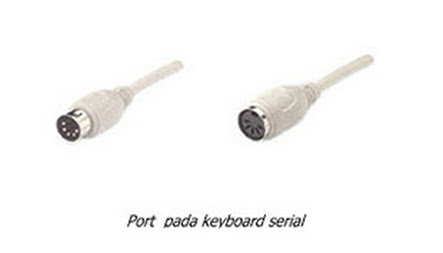
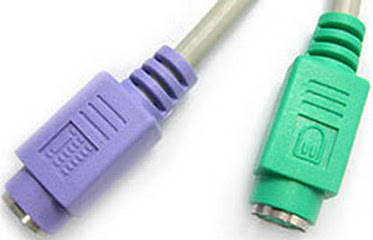
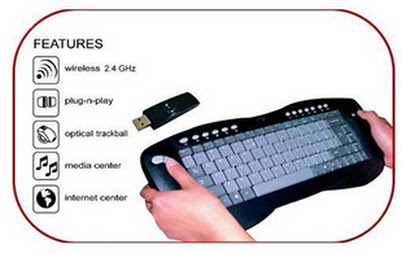
3. Wireless Keyboard: used on all types of computers and laptops
Wireless keyboard
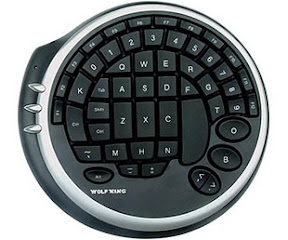
B. Type Keyboard Computer Using Forms and Buttons

1. QWERTY Keyboard: found by Scholes, Glidden and Soule in 1878, and the QWERTY keyboard function is used as a standard commercial typewriter in 1905.
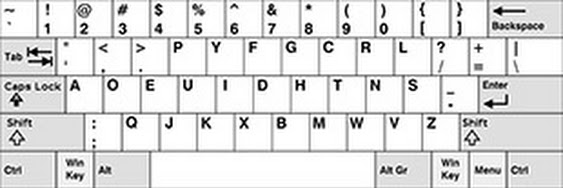

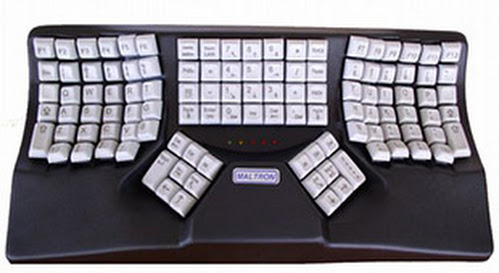
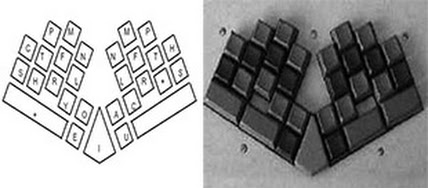

C. Computer Keyboard Key Functions
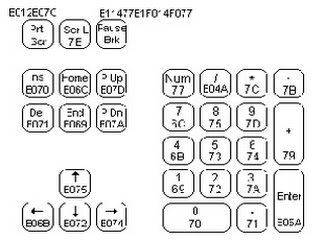
- Back Space: to delete one character to the left of the cursor
- Caps Lock: to make lowercase to uppercase or Kapital
- Delete: to erase one character at the cursor position
- Esc: to cancel an order from a menu
- End: to move the cursor to the end of the line / page / worksheets
- Enter: to move to a new line, or to perform a process command
- Home: To go to the beginning of the line or to the left corner of the screen
- Insert: to insert a character
- Page Up: to meggerakan cursor one screen to the top
- Page Down: Move the cursor to one screen down
- Tab: to move the cursor to the right one tabulation
- Numeric Key: provides command toggle numeric keypad functions
- Function Key: tombil consists of F1 s / d F12. The function of this button varies depending on the computer program used
- Special Function Key: This key consists of Ctrl, Shift, and Alt. Button will have functions when pressed simultaneously with other buttons
Langganan:
Komentar (Atom)


